
Why these settings get skipped
Privacy settings have a reputation for being buried in menus, written in confusing language, and easy to dismiss during setup. Most platforms present their defaults as the recommended choice - and for many users, that's where the settings stay permanently. The result is that a significant amount of data collection happens not through any deception, but simply because the controls exist and nobody changed them.
This isn't about paranoia. It's about making deliberate choices rather than passive ones. The settings covered here don't require technical expertise to adjust, and none of them will break the features you rely on. They simply shift the default in your favor. For broader context on building a safer digital routine, this plain-language introduction to digital safety is a helpful starting point.
Location history on your phone's operating system
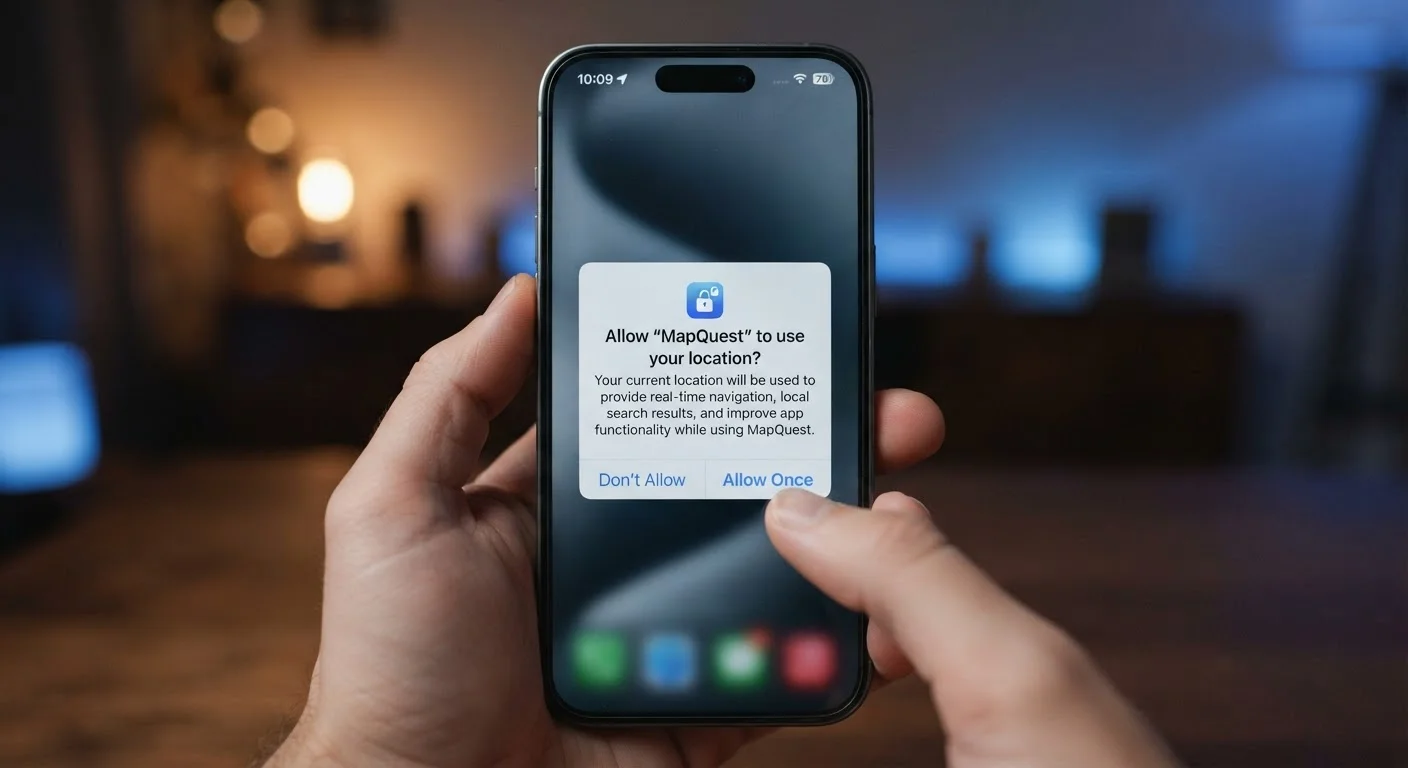
Both major mobile operating systems keep a running log of places you've visited - sometimes stretching back months or years. This is separate from location access you grant individual apps. On iOS, this is called Significant Locations (found under Privacy & Security → Location Services → System Services). On Android, it lives in Google's Timeline feature under your Google account settings.
These logs can build a surprisingly detailed picture of your daily routines. You can delete the history, turn off the feature entirely, or limit it to a shorter retention window. Disabling it won't break navigation - your maps app still works; it just won't remember everywhere you've been.
Location history logs your movements for months - and it's on by default.
Ad personalization and tracking identifiers
Every smartphone has an advertising identifier - a code that lets apps and advertisers track your behavior across different services. On iPhones, Apple introduced App Tracking Transparency, which means apps must ask before using this ID. But you can also go further: Settings → Privacy & Security → Tracking lets you disable all tracking requests outright.
On Android, you can reset or delete your advertising ID under Settings → Privacy → Ads. Opting out doesn't make ads disappear; it makes them less targeted. For many people, that's a worthwhile trade-off.
Resetting your advertising ID reduces cross-app tracking without removing ads entirely.
Third-party app access on social media accounts
When you've used a social account to log into another service - a quiz site, a game, a news app - that service often retains ongoing access to your profile data, even if you stopped using it years ago. Platforms like Facebook, Google, and X (formerly Twitter) all have a section in account settings listing every connected app.
Most people find apps on this list they've completely forgotten about. Removing access is straightforward: navigate to Settings → Security → Apps and Sessions (or similar, depending on the platform) and revoke anything you no longer recognize or use. This is one of the fastest ways to reduce your exposure with minimal effort. The breakdown of app permissions explains what data each type of access can reach.
Forgotten third-party apps often retain access to your social profile for years after you stop using them.
Email's external image loading and read receipts
Most email clients automatically load images embedded in messages. This sounds harmless, but those images can include invisible tracking pixels - tiny files that notify the sender when you opened an email, what device you used, and roughly where you are. Many email marketing platforms rely on this mechanism.
In Gmail, go to Settings → General → Images and choose "Ask before displaying external images." Apple Mail and many other clients have a Mail Privacy Protection toggle that hides your IP and delays load requests. Enabling this doesn't affect the text or attachments in your emails - it just prevents invisible trackers from phoning home.
Email tracking pixels can reveal when and where you read a message - without your knowledge.
Browser's privacy and data-sharing settings
Beyond private browsing mode, modern browsers contain privacy controls most users never explore. These include:
- Do Not Track: A signal browsers can send to websites requesting they not track your behavior. Compliance is voluntary, but it's worth enabling.
- Third-party cookie blocking: Most major browsers now offer this as a toggle. Third-party cookies are the main mechanism advertisers use to follow you from site to site.
- Sync settings: If you're signed into a browser, your history and open tabs may be uploaded to the provider's servers. You can limit what gets synced.
You can review these controls under your browser's Privacy and Security settings panel. For a deeper look at what browsers store, the guide to cookies, cache, and history is a useful companion.
Third-party cookie blocking is available in most browsers today - and it's usually not enabled by default.
Microphone and camera access for desktop apps
Phone users have grown accustomed to permission prompts for microphone and camera access, but desktop computers have the same controls - and they're often overlooked. On Windows, go to Settings → Privacy & Security → Microphone (or Camera) to see which apps have access. On macOS, this lives under System Settings → Privacy & Security.
Communication apps, browsers, and sometimes productivity software may have permanent access granted during installation. Reviewing this list periodically - especially after installing new software - is a simple habit that costs nothing. See our guide to keeping apps secure for related practices worth building into your routine.
Desktop apps can hold permanent microphone and camera access granted years ago during setup.
Data sharing with research or improvement programs
Many operating systems and apps opt you into diagnostic data sharing by default - sending usage statistics, crash reports, and sometimes more detailed behavioral data back to the developer. These programs have legitimate purposes (improving software), but participation is rarely explained clearly at setup.
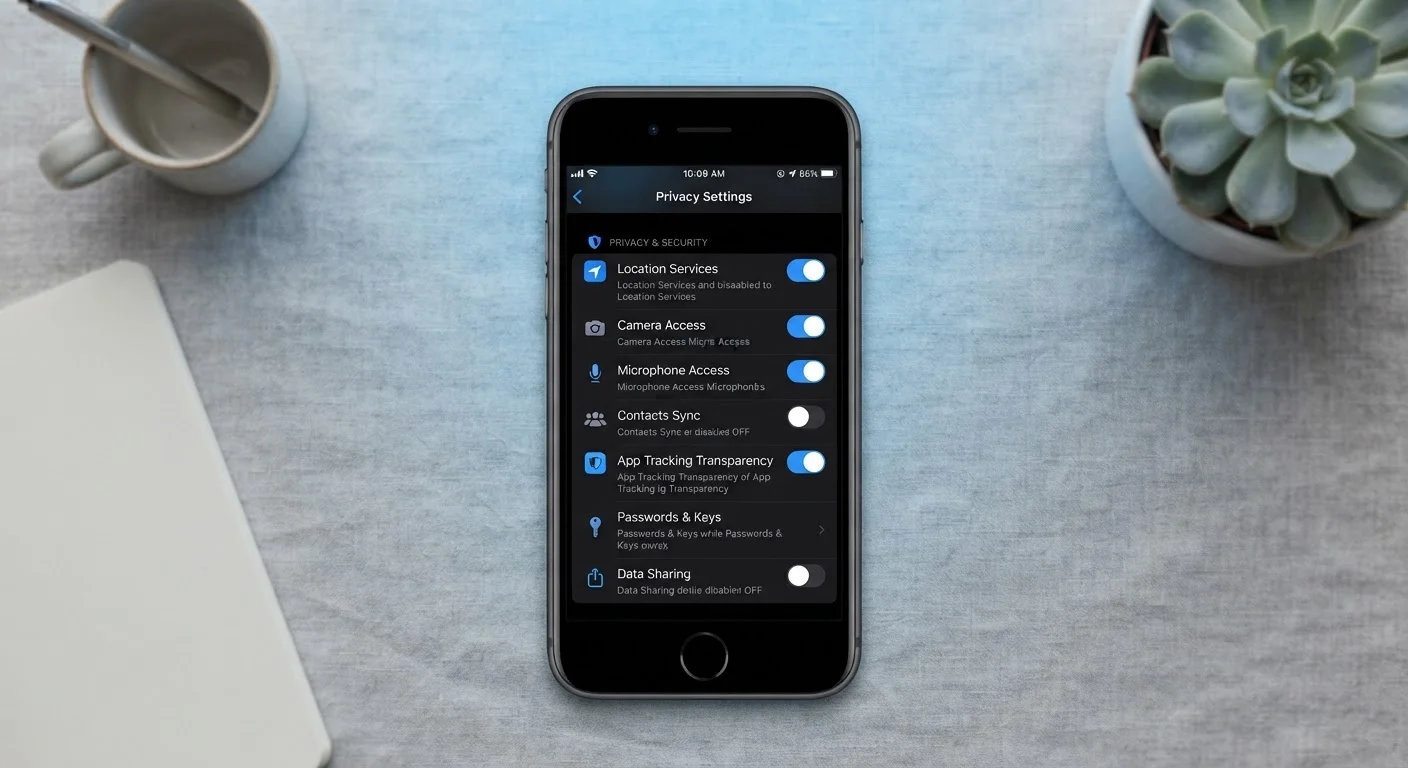
On iPhone, check Settings → Privacy & Security → Analytics & Improvements. On Windows, look under Settings → Privacy & Security → Diagnostics & Feedback and set it to Basic rather than Full. On macOS, the option is under System Settings → Privacy & Security → Analytics & Improvements. Turning these off doesn't affect how your device functions day-to-day.
Most devices silently share diagnostic data with manufacturers unless you specifically opt out.
Making this a manageable habit
Reviewing privacy settings doesn't need to be a one-time deep dive. The most practical approach is to check a few settings whenever you install a new app, set up a new device, or notice an update has changed something on your screen. Small, periodic checks are more effective than trying to audit everything at once.
Start with a 15-minute privacy audit
Pick one device or platform and work through its Privacy or Security settings menu from top to bottom. You don't need to change everything - just understand what each toggle does and decide deliberately. Doing this once a year, or after major updates, keeps you in control without requiring ongoing effort.
If you want to go further, these online privacy habits cover complementary practices - like password hygiene and two-factor authentication - that work alongside the settings adjustments above. And if you're curious about how your data might be circulating beyond the apps you use, this overview of data brokers explains what's happening and what options you have.
Settings change after updates
Platform and operating system updates sometimes reset privacy preferences or introduce new data-sharing options that default to 'on.' It's worth doing a quick review of key settings after major software updates - not just once when you first set up a device. This applies to phones, browsers, and desktop operating systems alike.