
Why App Permissions Matter
Every time you install a new app, it typically asks for access to parts of your phone - your camera, your contacts, your location. Most people tap "Allow" without a second thought. But each permission is a genuine data-sharing decision, and understanding what you're agreeing to puts you back in control.
Permissions exist for legitimate reasons. A navigation app genuinely needs your location. A video-calling app needs your camera and microphone. The concern isn't that apps ask - it's when the request doesn't match what the app actually does. A simple flashlight app asking for your contact list, for example, deserves a raised eyebrow.
To make better decisions, it helps to know what each common permission actually unlocks on your device. See the glossary below for key terms, then read on for a permission-by-permission breakdown.
Permission
An explicit authorization you grant an app to access a specific feature or data source on your device, such as your camera or location. You can typically grant, deny, or revoke permissions at any time.
Background access
When an app accesses a resource - like your location or microphone - even when the app is not open on your screen. Background access uses more battery and raises greater privacy considerations.
Granular permission
A fine-grained access option that lets you limit what an app can do - for example, allowing location access only while the app is in use, rather than always.
Runtime permission
A permission that apps must request at the moment they need it, rather than all at once during installation. Modern Android and iOS both use runtime permissions for sensitive categories.
Common Permission Types Decoded
Here's what each major permission category actually means - and when it's reasonable to grant or deny it.
| Highest-risk permissions | Location, Camera, Microphone, Contacts |
| Permissions you can revoke | All of them - at any time in Settings |
| iOS indicator | Orange dot = mic active; Green dot = camera active (Apple iOS design documentation) |
| Android location options | Always, Only while using app, or Deny (Android developer documentation) |
| Contact data scope | Includes third-party info - names and numbers of people who didn't install the app |
Location
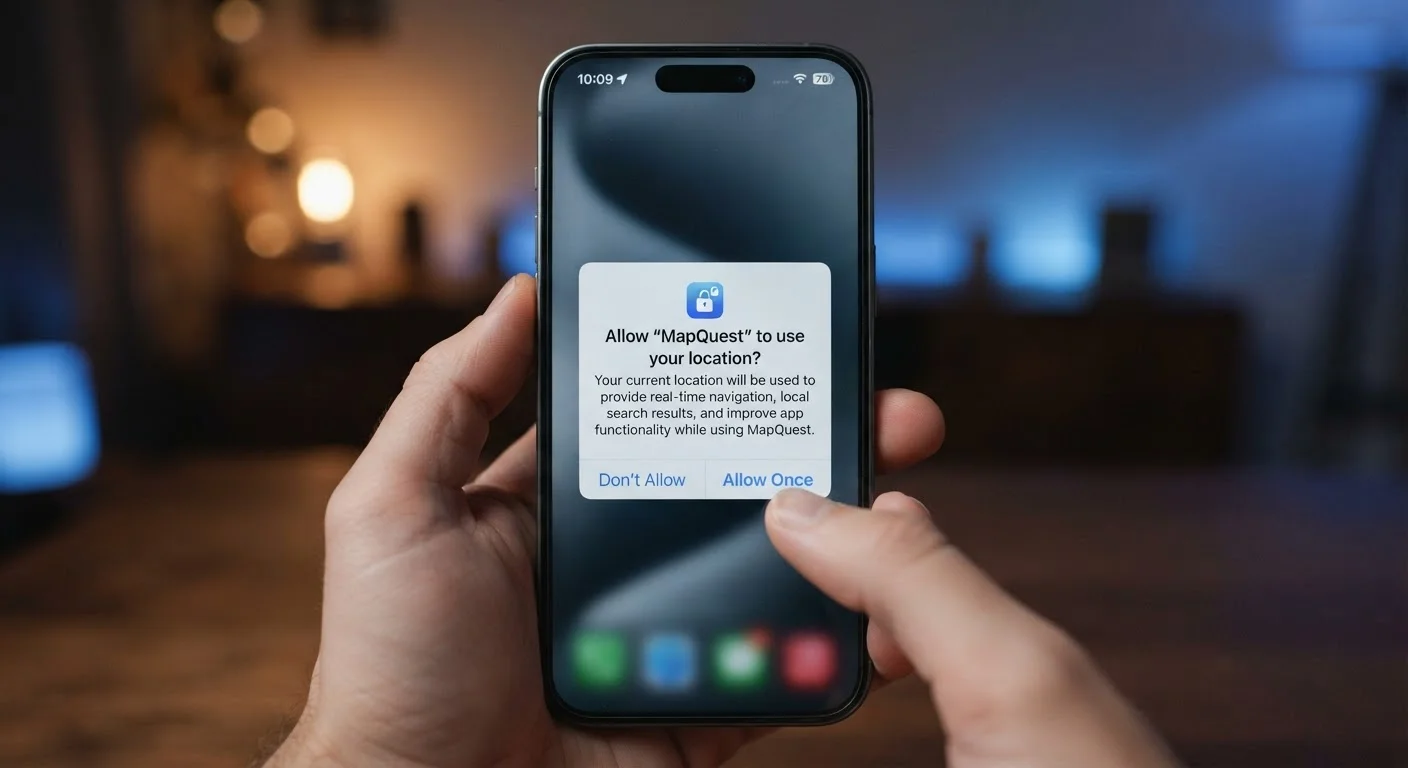
This permission lets an app know where you are, either precisely (using GPS) or approximately (using Wi-Fi or cell towers). Precise location is appropriate for maps, ride-sharing, or weather apps. Be more cautious about granting it to shopping apps, games, or utilities that have no obvious geographic function. Both Android and iOS allow you to choose "Only while using the app" - a middle-ground option worth using when you want the feature without background tracking.
Camera and Microphone
Camera access lets an app capture photos or video. Microphone access lets it record audio. These are among the most sensitive permissions because misuse is hard to detect. Grant them only to apps with a clear, ongoing need - video chat, document scanning, voice assistants. After granting, iOS and Android both display indicator lights or icons when the camera or mic is actively in use.
Contacts
This permission exposes your entire address book - names, phone numbers, email addresses, and sometimes notes. Messaging and calling apps often need it to find people you know. But because contact data includes information about other people who haven't consented, it's worth granting sparingly. Consider whether the app truly needs your full list, or whether a manual search would work just as well.
Storage and Files
Storage access lets an app read or write files on your device. A photo editor needs this to save your work. A music player needs it to access your library. Broader file access - sometimes labeled "All files" - is more powerful and warrants more scrutiny. Check what the app actually needs to function before approving wide-open file access.
Notifications
Notification permission doesn't expose personal data directly, but it controls whether an app can interrupt you. Apps with notification access can send alerts at any time, which affects both your attention and your battery. Granting it selectively - only to apps where timely alerts genuinely matter - is a simple way to reduce noise. For a deeper look at related privacy settings, see commonly overlooked privacy controls that most users never adjust.
Understanding permissions is one layer of app hygiene. If you're also wondering whether too many apps are slowing your device, these signs suggest background apps may be quietly taxing your phone.
When 'Deny' Doesn't Break the App
Many apps function perfectly well without every permission they request. If you deny a permission and the app still works for your main purpose, you haven't lost anything. Apps are only supposed to request permissions they genuinely need - but enforcement of that principle is imperfect. Denying and testing is a low-risk way to find out.
How to Review and Revoke Permissions
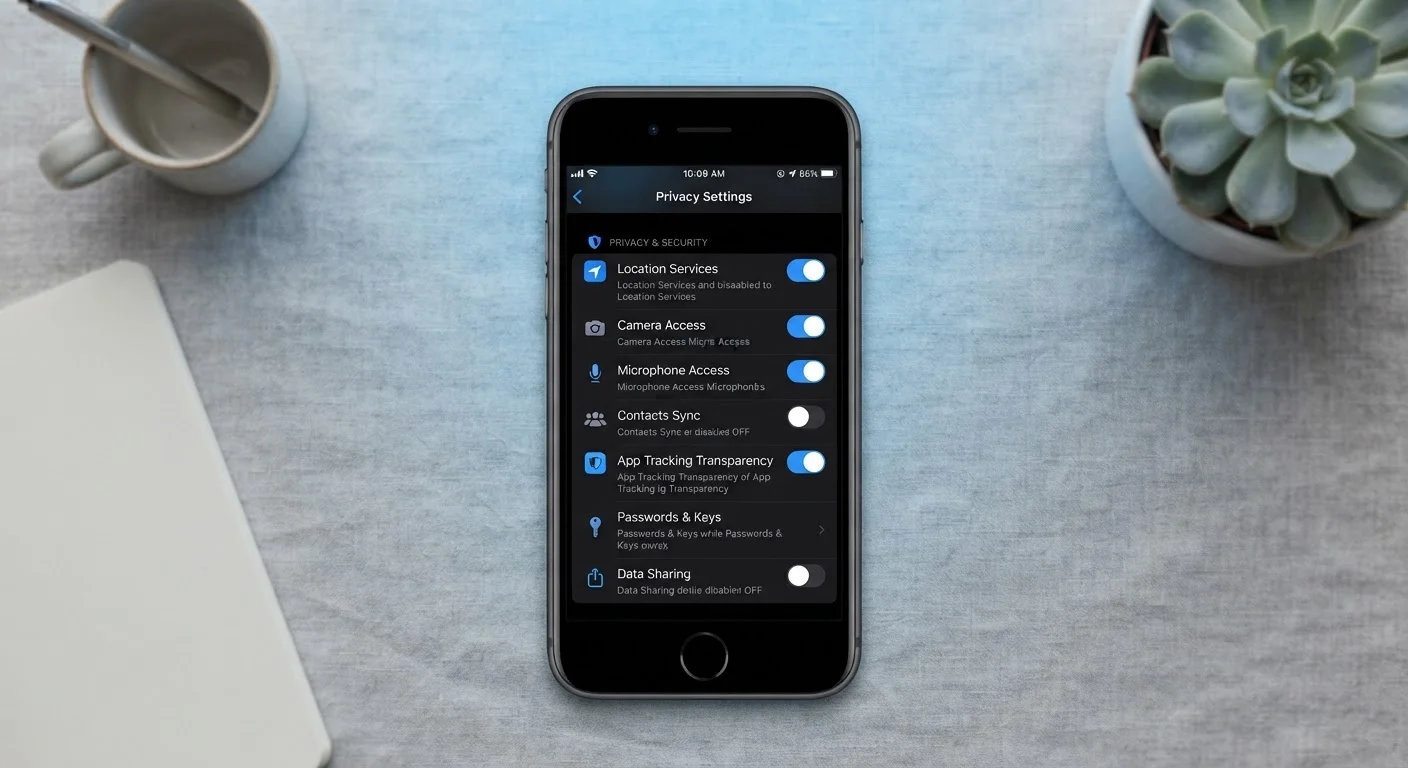
You don't have to decide forever at installation. Both iOS and Android let you revisit permissions at any time through your phone's Settings app. On most devices, navigate to Settings → Privacy (iOS) or Settings → Apps → → Permissions (Android) to see exactly what each installed app can access - and revoke anything that doesn't make sense.
A useful habit: after using a new app for a week, revisit its permissions once you understand what it actually does. You may find you granted camera access during setup and never needed it again. Removing unnecessary permissions doesn't break most apps - it just limits their reach.
Free apps sometimes request broad permissions to support advertising or analytics. For a clearer picture of those trade-offs, this overview of data practices in ad-supported apps is worth reading alongside this guide. And if you want to build stronger habits overall, these app security practices cover the full picture from download to daily use.