
Why Your Home Network Setup Matters More Than You Think
Your home router is the gateway between every device you own and the wider internet. A poorly configured one can expose your traffic, allow unauthorized users onto your network, or serve as an entry point for malicious software. The good news: the most important protections require no technical background - just a few deliberate choices during setup.
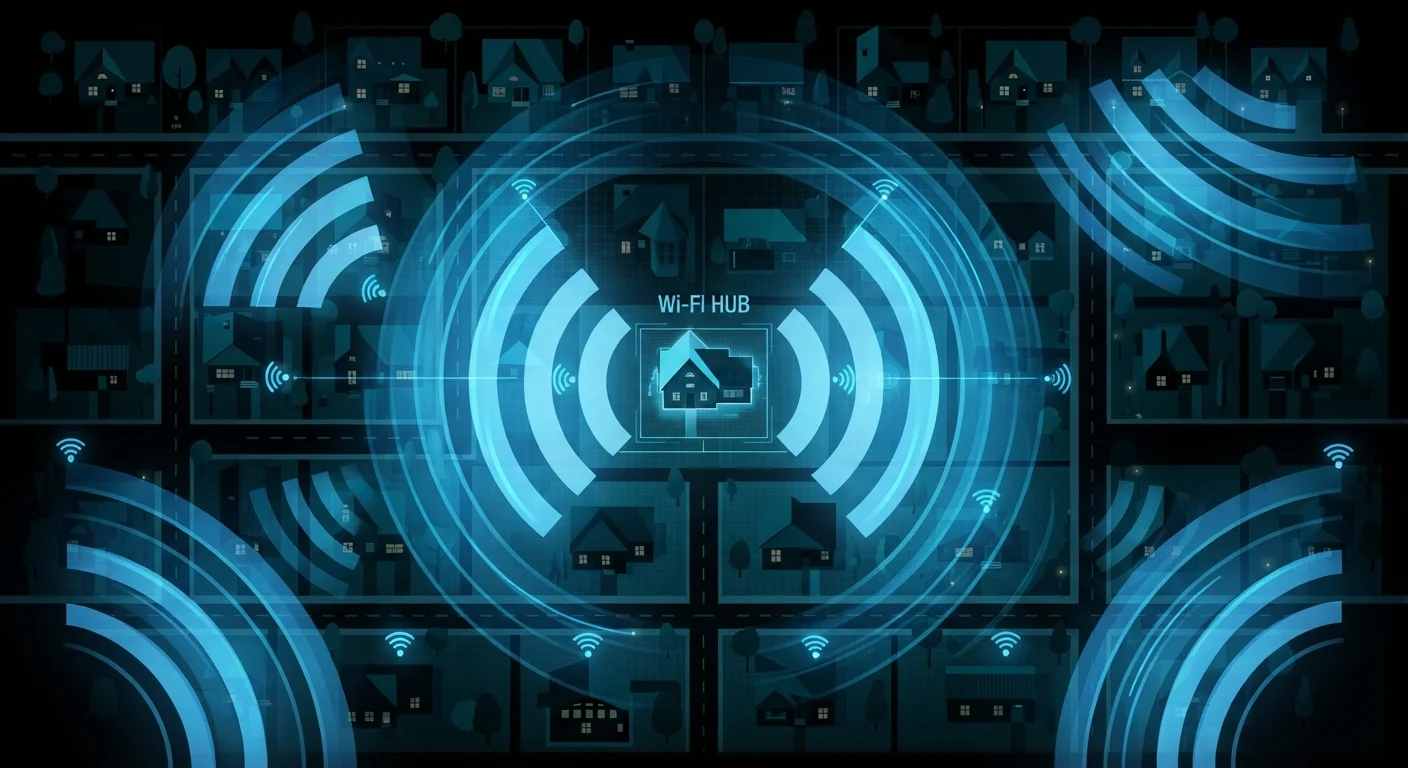
Home Wi-Fi networks carry risks most people overlook, including signals that extend beyond your walls and default settings that were never designed with your security in mind. This guide walks through the setup process with those risks addressed from the start.
What you will need
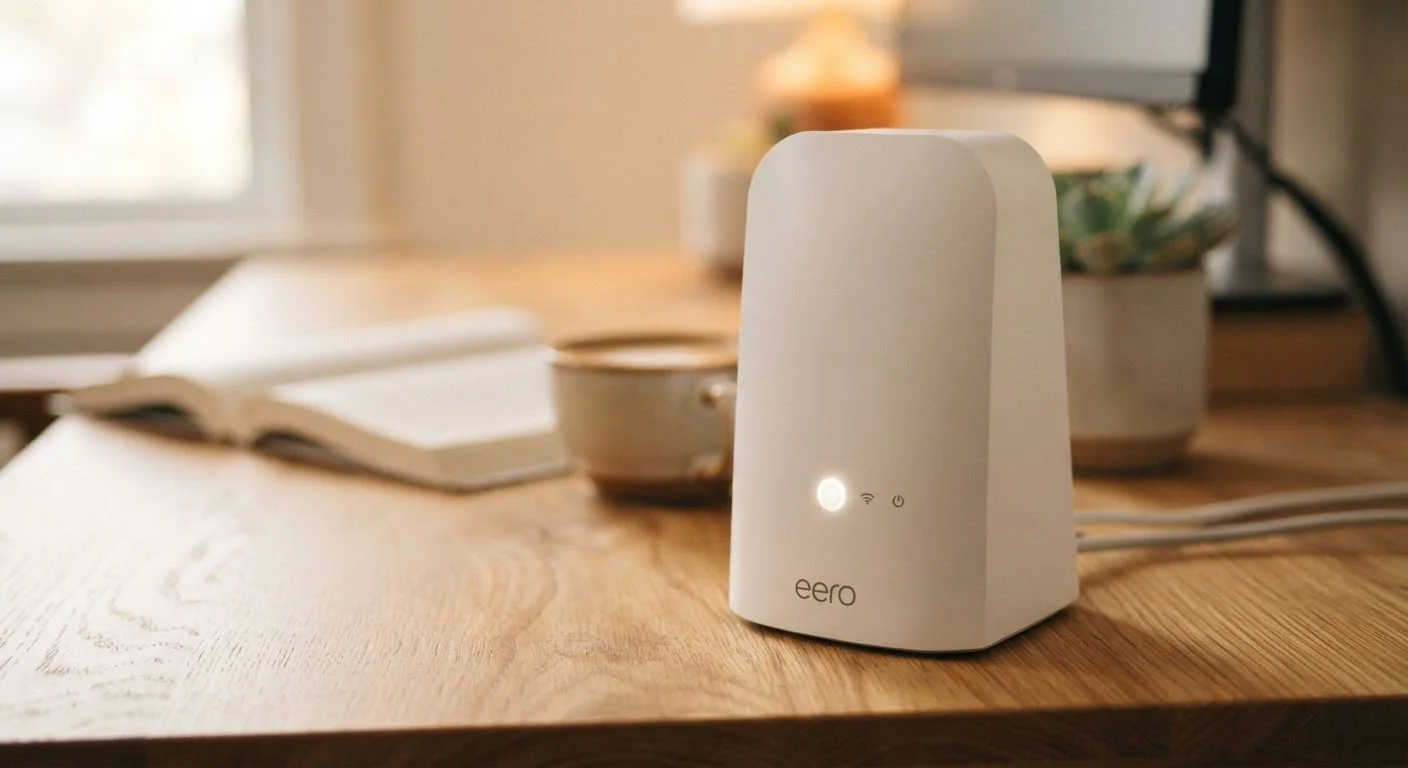
Wireless Router
Broadcasts your Wi-Fi network and manages traffic between your devices and the internet.
Ethernet Cable
Connects your router directly to your modem for initial setup - more reliable than Wi-Fi during configuration.
Password Manager App
Stores your new router admin and Wi-Fi credentials so you do not need to memorize them.
Router Manufacturer's Mobile App
Many modern routers offer a companion app that simplifies setup and firmware updates.
Step-by-Step: Setting Up Your Network Securely
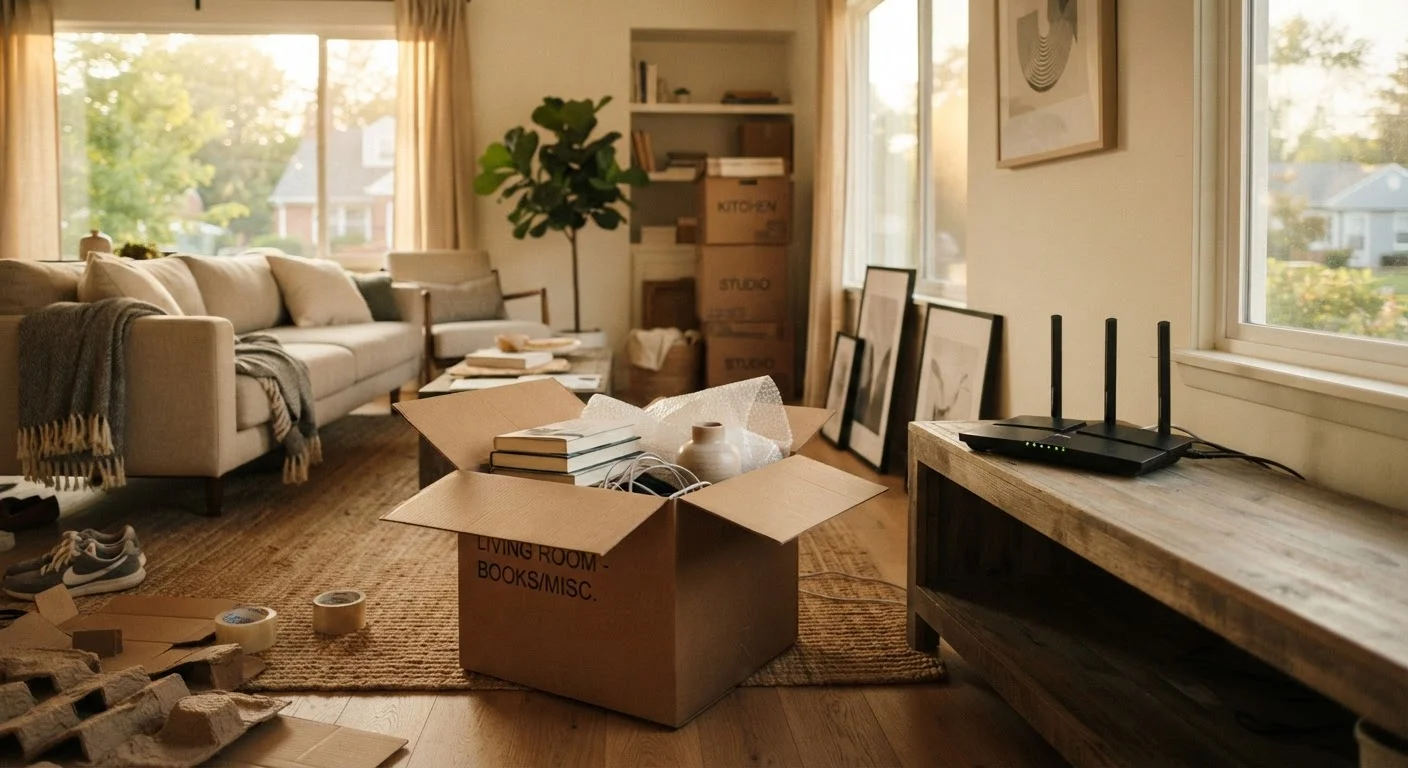
Follow these steps in order. If you're moving into a new home, there are several commonly skipped setup steps worth reviewing alongside this guide.
Never Skip Changing Default Passwords
Routers ship with default admin usernames and passwords that are publicly listed online. Leaving them unchanged means anyone who accesses your router's settings page - even from inside your network - can take control of it. Change both the admin password and the Wi-Fi passphrase before connecting any devices.
Position your router thoughtfully
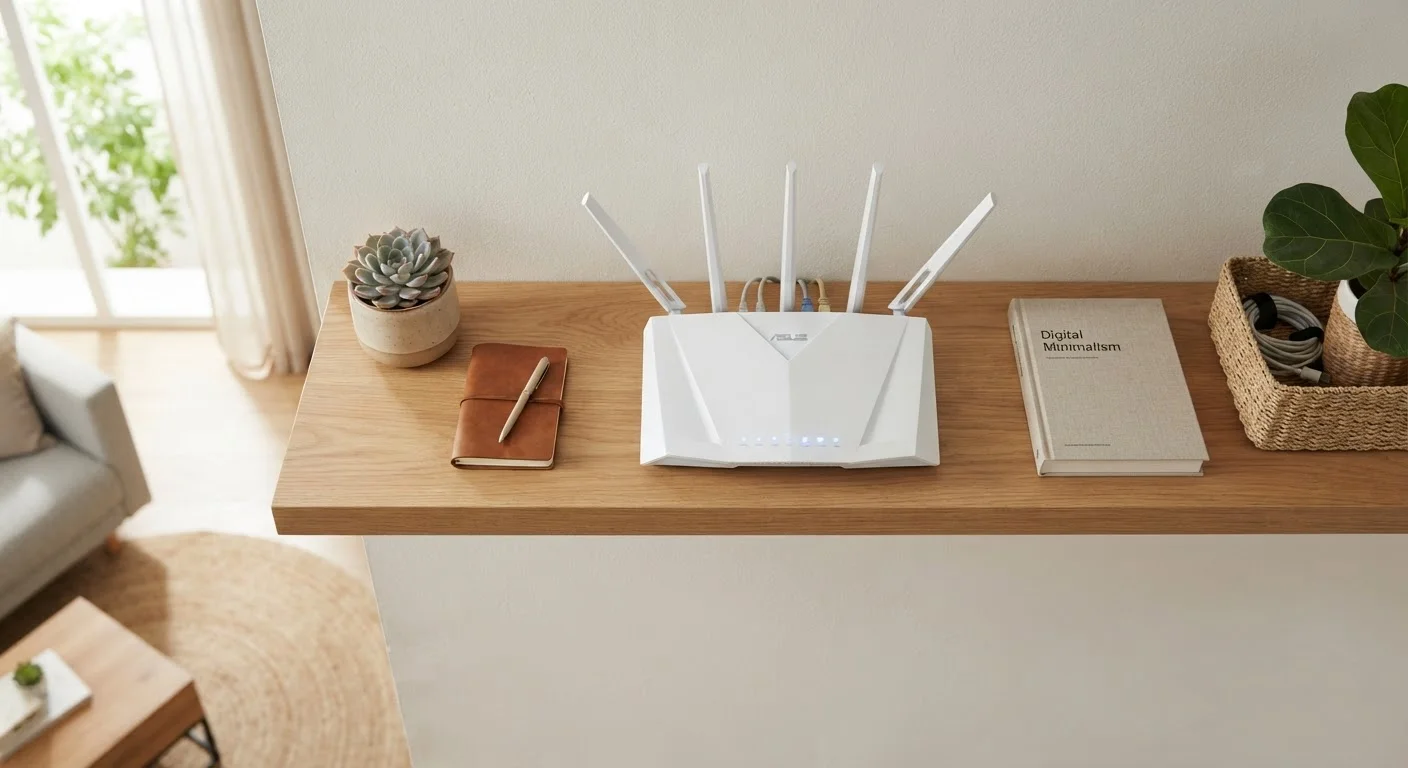
Place your router in a central, elevated location - a shelf in a main living area, for example. This maximizes signal coverage throughout the home and minimizes how far the signal bleeds outside your walls, which slightly reduces your network's visibility to neighbors. Avoid closets, cabinets, or corners near exterior walls.
Connect the router and access its admin panel
Plug your modem into the router's WAN (internet) port using an Ethernet cable, then connect your computer to one of the router's LAN ports. Open a browser and type the router's default IP address - commonly 192.168.1.1 or 192.168.0.1 - into the address bar. Check your router's label or manual for the exact address and default login credentials.
Change the router admin username and password
Once logged in, navigate to the admin or system settings section. Change the default admin username (if changeable) and set a strong, unique password for the router interface itself. This is separate from your Wi-Fi password. Store these credentials securely - a password manager works well here.
Configure your Wi-Fi network name and passphrase
Set a network name (called an SSID) that does not reveal your address, name, or router model. Avoid names like Apartment3B-Netgear. Then set a strong passphrase under the wireless security settings. Choose WPA3 encryption if your router supports it; otherwise select WPA2-AES. Avoid older WEP or WPA (TKIP) options - they have known weaknesses.
Enable a separate guest network
Most modern routers let you create a secondary guest Wi-Fi network. Enable it with its own distinct passphrase. Give this network to visitors and also connect smart home devices - thermostats, cameras, speakers - to it. This keeps those devices isolated from computers and phones holding sensitive data. See why smart device isolation matters for broader context.
Update the router's firmware
In the admin panel, look for a Firmware or Software Update option - often under Administration or Advanced settings. Check for and apply any available updates. Firmware updates patch security vulnerabilities that manufacturers discover after the router ships. Enable automatic updates if the option exists.
Disable features you do not need
Review the router's feature list and turn off anything you won't use: WPS (Wi-Fi Protected Setup) has a known vulnerability and is rarely needed; remote management allows access to your admin panel from outside your home and should be off unless you specifically need it; UPnP (Universal Plug and Play) can automatically open ports - turn it off if you're unsure whether you need it. For a deeper look at these settings, explore what your router's less-obvious settings actually do.
Use a Passphrase, Not a Password
A Wi-Fi passphrase made of four or five random common words - like 'marble-cloud-fence-lantern' - is both easier to remember and harder to crack than a short string of symbols. Length is the single most important factor in passphrase strength.
Keeping Your Network Secure Over Time
Setting up securely is a great start, but networks need occasional attention. Revisit your router's admin panel every few months to check for firmware updates, review which devices are connected, and rotate your Wi-Fi passphrase if you've shared it widely.
Strong network hygiene pairs naturally with broader digital habits. Building privacy habits across all your online activity extends the protection you've put in place at the network level to your accounts, browsing, and apps. And if you ever connect outside the home, public Wi-Fi carries its own set of risks that a secure home network won't protect you from.
Firmware Updates Can Briefly Drop Your Connection
When your router applies a firmware update, it will typically restart and take your network offline for one to three minutes. Avoid updating during an important video call or while someone is actively working from home. Schedule updates for a quiet period.