
Why App Clutter Is Worth Addressing
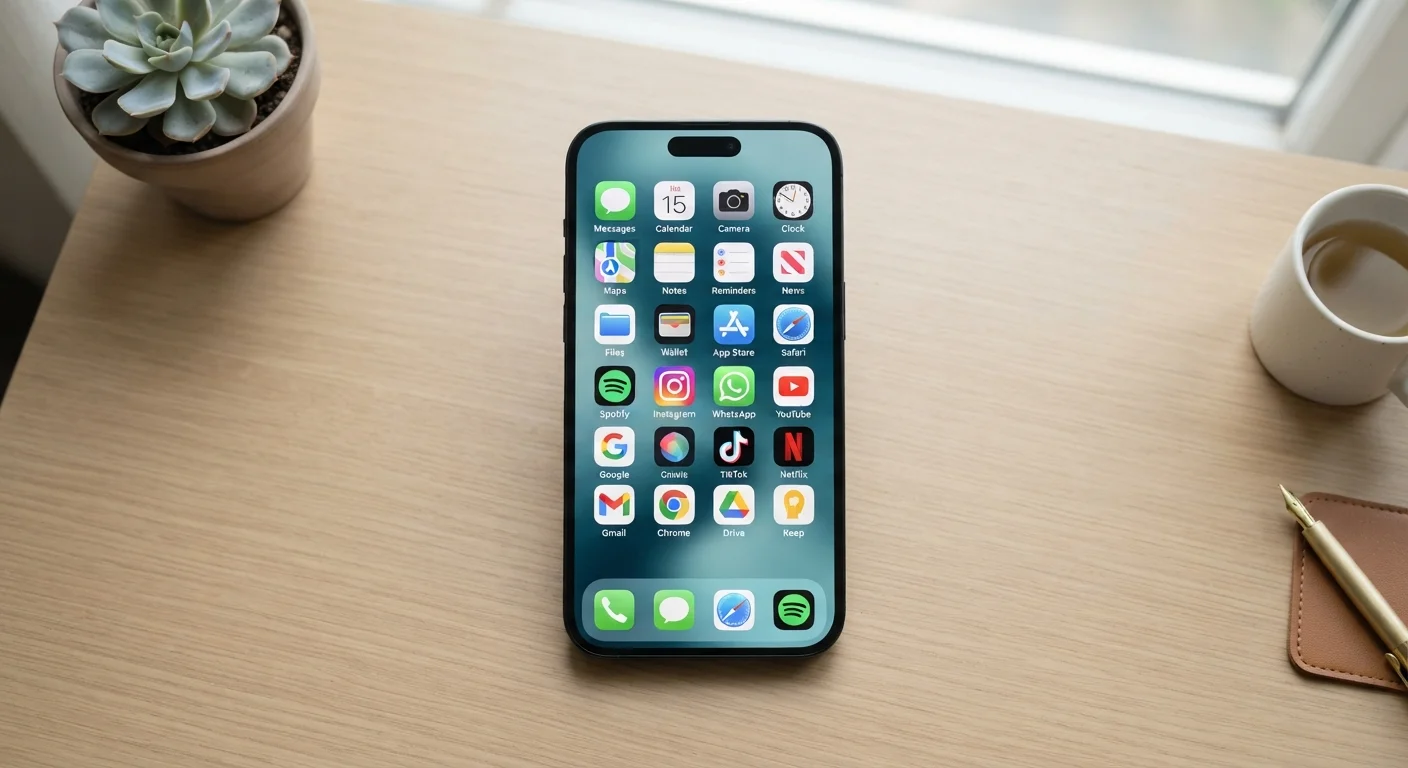
The average smartphone user has dozens of installed apps - many downloaded once and forgotten. Unlike physical clutter, digital mess is invisible until it starts causing friction: a home screen that takes seconds to scan, notifications from apps you don't recognize, or storage warnings that arrive at the worst moment.
App overload also has a subtler cost. Research into digital environments suggests that a cluttered interface can contribute to mild decision fatigue - the same mental taxation you might feel when a drawer is too stuffed to close properly. If you've ever felt vaguely overwhelmed opening your phone, the number of apps competing for attention may be part of the reason.
The goal here isn't minimalism for its own sake. It's to make sure what's on your device actually reflects how you live and work. Think of it as the digital equivalent of the organizing principles covered in a first approach to tackling a disorganized space - start with a clear picture of what you have before deciding what to keep.
What you will need
Tools and Setup
You won't need much to run a thorough app audit. The process is primarily mental - but a couple of resources make it significantly easier.
Your device's built-in storage or app usage screen
Shows which apps take the most space and, on many devices, how recently each was last opened.
A simple notepad or notes app
Useful for jotting categories or flagging apps you want to research before deciding.
Your app store's purchase/download history
Lets you reinstall any app you delete later, so deletion is almost never permanent.
How to Audit and Pare Down Your Apps
Work through the steps below in one focused session if you can. Thirty minutes is enough for most devices. If you have apps spread across a tablet, laptop, and phone, tackle one device at a time rather than all at once.
Pull up your full app list
Don't start from your home screen - it only shows what you've pinned, not everything installed. Instead, go to your device's settings and open the full app or storage list. On most smartphones this is under Settings > General > iPhone Storage (iOS) or Settings > Apps (Android). Scroll through the complete list slowly. The goal right now is simply to see everything, including apps buried in folders or never opened after install.
Sort apps into three buckets
As you scan the list, mentally (or on paper) assign each app to one of three categories:
- Keep - you use it regularly and it does something nothing else does.
- Review - you're not sure, or you use it rarely but may need it.
- Delete - you haven't opened it in months, it duplicates another app, or you don't remember why you installed it.
Don't spend more than a few seconds on each one. Hesitation usually signals a candidate for deletion.
Check for duplicates
Look across your 'keep' list for apps that do the same job. Common overlaps include multiple note-taking apps, two or three weather apps, several photo editors, or multiple messaging platforms that all reach the same people. Pick one in each category and move the rest to 'delete.' If you're weighing whether a digital tool even outperforms a paper alternative for certain tasks, the comparison in digital tools vs. paper planning can offer a useful perspective.
Delete your 'delete' pile
Work through the delete list app by app. On iOS, press and hold an app icon and choose Remove App. On Android, go to Settings > Apps, select the app, and tap Uninstall. Don't hesitate: deleting an app removes it from your device but keeps it in your purchase history. You can reinstall any paid app you've previously downloaded at no extra cost.
Reorganise what remains
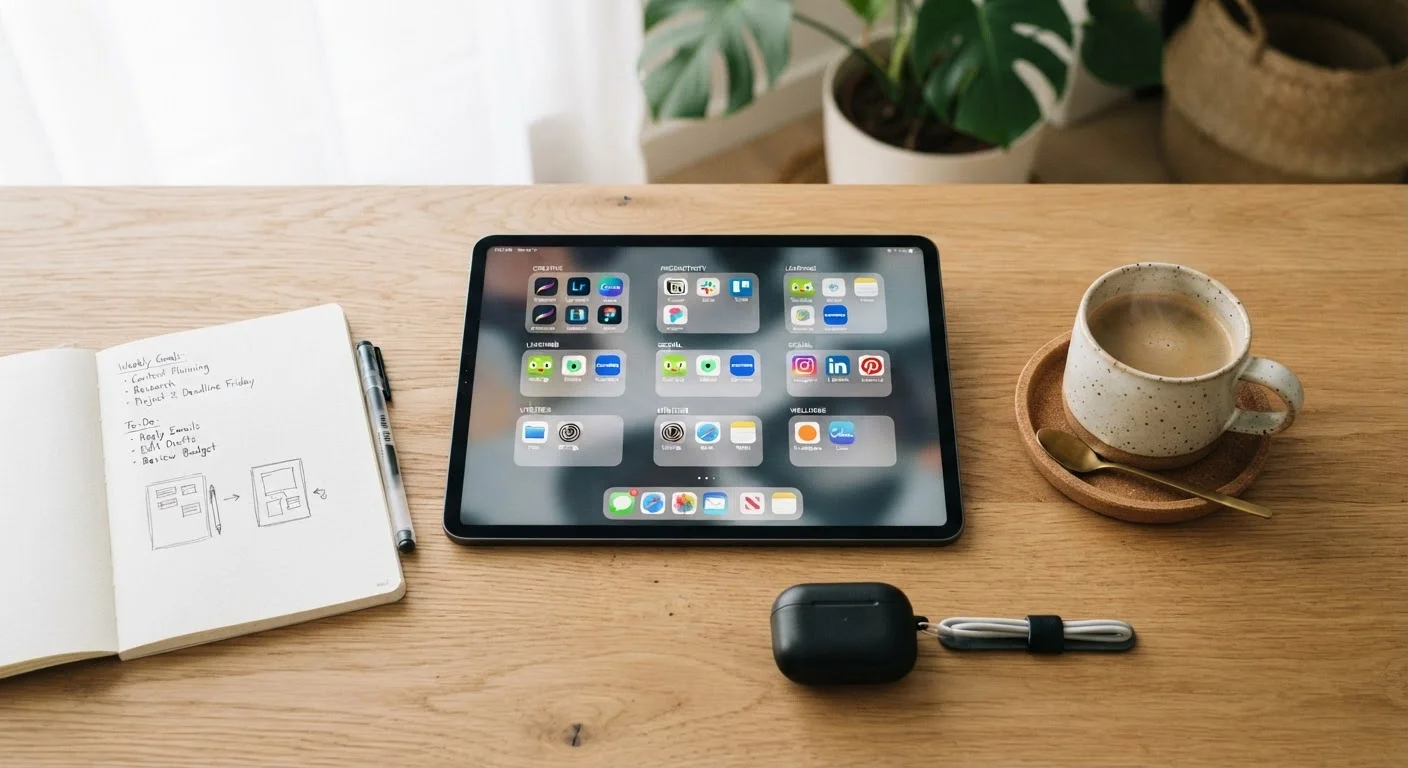
Once you've cut the list down, group remaining apps by function rather than frequency or aesthetics. Practical categories might include: communication, finances, navigation, health, creativity, and utilities. Use folders on your home screen to reflect these groups. A well-labelled folder of four apps is easier to navigate than 20 icons spread across three screens.
Review notification permissions
Open your notification settings and audit which remaining apps can send you alerts. Disable notifications for any app that doesn't require timely action from you - most news, shopping, and social apps fall into this category. Fewer notifications means less cognitive interruption throughout the day.
The Reinstall Safety Net
Many people avoid deleting apps because they worry they'll regret it. In practice, the vast majority of apps can be reinstalled within seconds from your app store's download history - often for free even if you paid originally. Framing deletion as temporary makes the decision significantly easier.
Keeping It From Coming Back
The audit gets you to a clean baseline. The harder part is staying there. App stores are designed to encourage installs - free trials, limited-time features, and one-tap downloads make it easy to accumulate clutter all over again.
A simple rule worth adopting: before installing anything new, ask what it replaces. If the answer is nothing, consider whether you genuinely need it or are just curious. Curiosity is fine, but set a calendar reminder for two weeks after install to evaluate whether you've actually used it. If not, delete it without guilt. This mirrors the logic behind one-in, one-out habits that work well in physical spaces.
A monthly five-minute check - sorting new installs into keep or delete - is far less work than an annual overhaul. If you want to go deeper on which productivity tools genuinely earn their place, a first-timer's map through productivity software can help you understand the categories before committing to any one app. For task-specific decisions, matching a task management app to how your brain works offers a practical framework.
Avoid Replacing Clutter With New Clutter
After an audit, it's tempting to download a dedicated 'app organizer' tool on top of everything else. Most devices already have the settings you need built in. Adding another app to manage your apps often just shifts the problem rather than solving it.