
Why Speed Test Results Are Easy to Misread
A speed test seems simple: press a button, see a number. But that number alone can lead you to the wrong conclusions. Many readers assume one figure - usually download speed - is the full story, or they run the test under conditions that drag results down artificially and then call their ISP demanding answers.
Understanding what each metric represents is the first step. For a plain-language breakdown of terms like Mbps, Gbps, and ping, see our guide to internet speed numbers. Once you understand the vocabulary, the steps below will help you run and read a test that actually reflects your real connection.
What you will need
How to Run a Speed Test You Can Actually Trust
Most inaccurate speed test results come from poor testing conditions, not a broken connection. Follow these steps to get a reliable baseline.
Use a wired connection if possible
Connect your computer directly to your router or modem using an Ethernet cable. Wi-Fi introduces variables - signal interference, distance, and the number of connected devices - that can make results look worse than your actual service. If you can only test via Wi-Fi, stand as close to the router as possible and note that limitation when reading the results.
Pause everything else on your network
Ask others in your home to stop streaming, gaming, or downloading during the test. Pause any active downloads or cloud sync services on the test device itself. Background activity on any device sharing your connection will consume bandwidth and lower your results artificially.
Choose a reputable, browser-based testing tool
Open a browser and navigate to a widely recognized speed testing site. Avoid app-based tests on phones for baseline measurements - they add device processing as a variable. Use the tool's default server selection for the first test, as it typically picks the closest server automatically.
Run the test at least three times
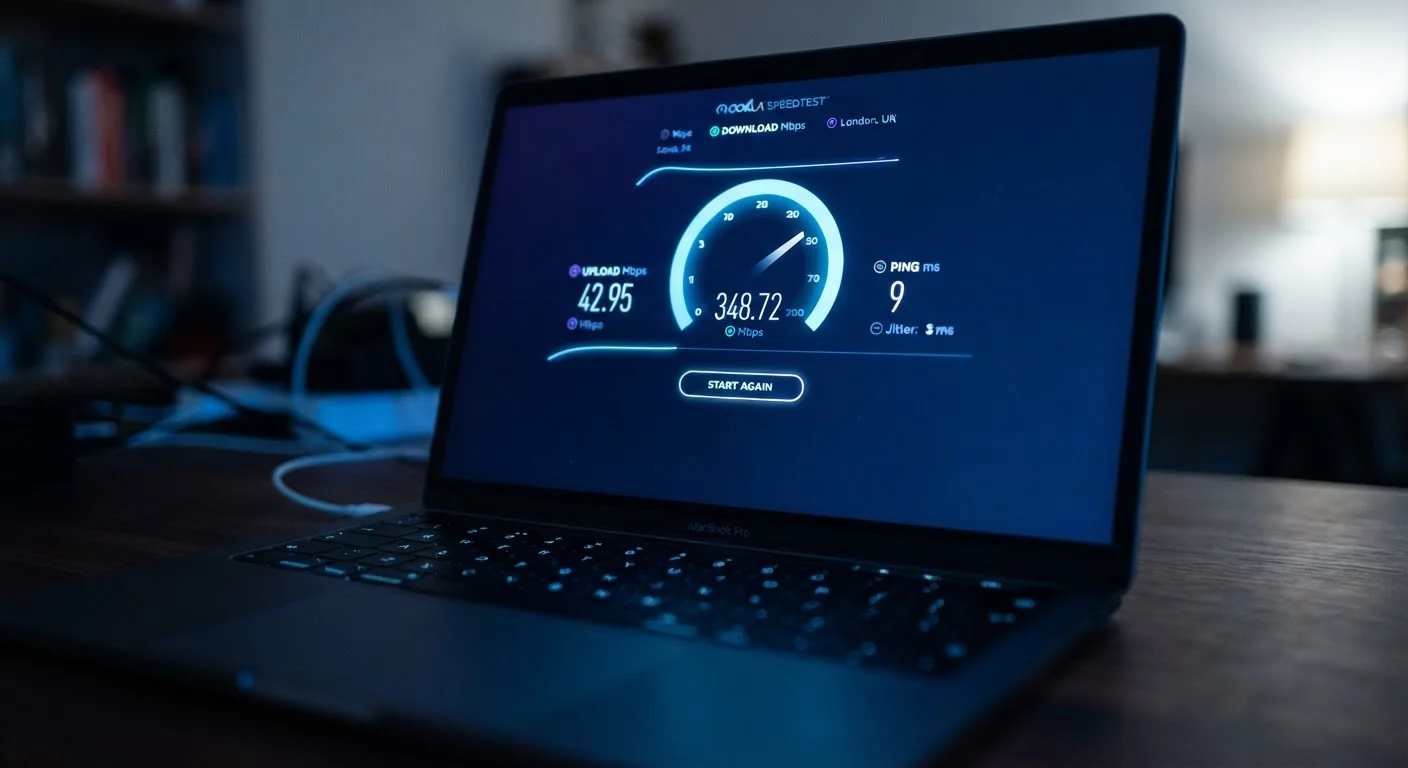
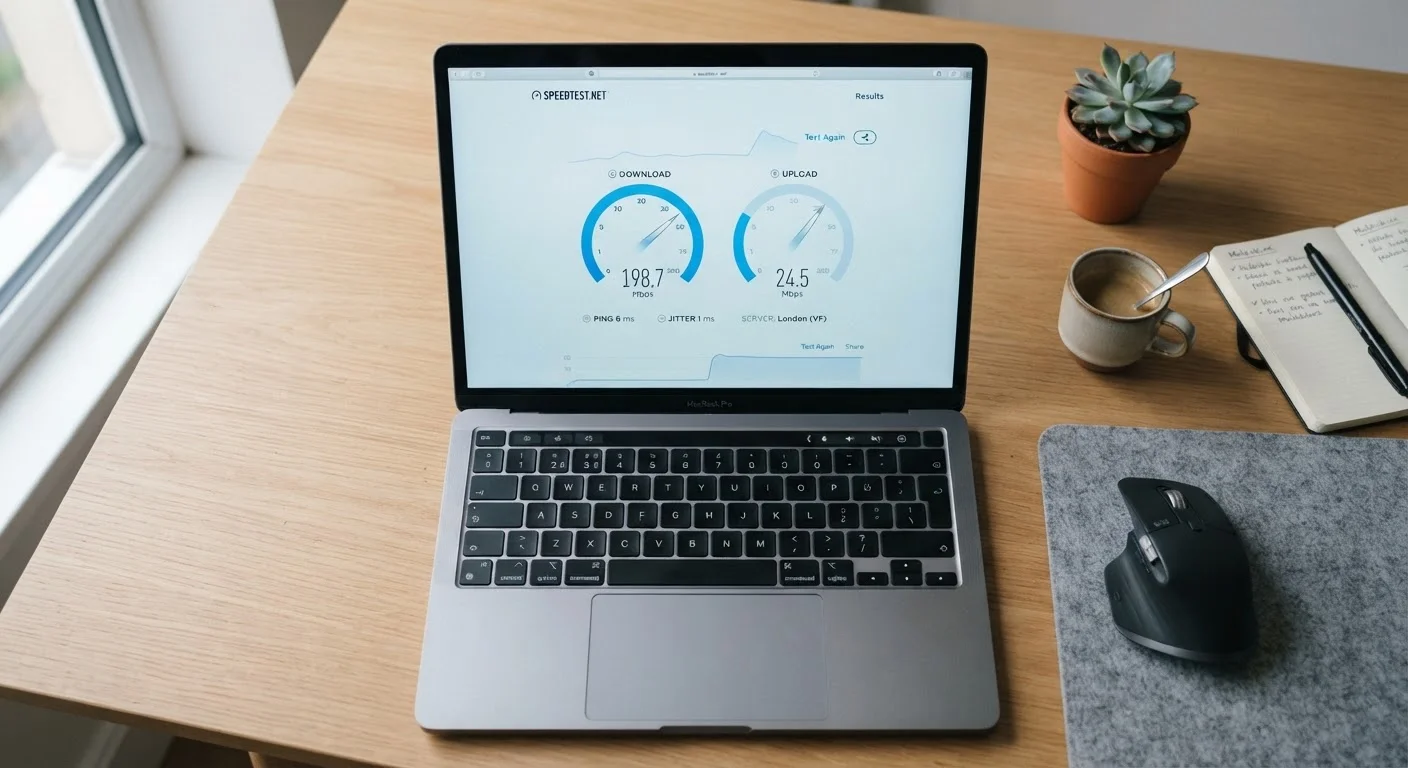
Click the start button and let the test complete fully. Record the download speed, upload speed, and ping (latency). Wait 60 seconds, then repeat. Run at least three tests. Discard any result that seems like an outlier and average the remaining numbers. Fluctuation between tests is normal; a consistent pattern across all three is meaningful.
Test at different times of day
Network congestion varies. ISPs share bandwidth among neighborhoods, so speeds during weekday mornings may be noticeably higher than during peak evening hours. Run your test set in the morning, afternoon, and evening on separate days before drawing conclusions. A single snapshot at one moment does not represent your everyday experience.
One Number Is Never the Full Picture
Speed test results reflect conditions at the exact moment of the test. Time of day, server load, and your local network traffic all influence the outcome. Treat any single result as a data point, not a verdict. A week of results at varied times gives you a genuinely useful baseline.
Interpreting What the Numbers Mean
Once you have a clean result, here is how to make sense of each figure:
- Download speed - How fast data travels from the internet to your device. This affects streaming, browsing, and file downloads. Most household tasks are download-heavy.
- Upload speed - How fast data travels from your device to the internet. This matters for video calls, cloud backups, and sharing large files. Many plans offer upload speeds far lower than download speeds.
- Latency (ping) - Measured in milliseconds (ms), this is the round-trip time for a signal to reach a server and return. Lower is better. A ping under 20 ms is excellent; over 100 ms often causes noticeable lag in video calls or gaming.
- Jitter - Some tools report jitter, which is the variation in latency over time. High jitter causes choppy audio and video even when average ping looks acceptable.
Compare your results against your ISP's advertised speeds cautiously. Providers typically advertise maximum theoretical speeds under ideal conditions. Actual speeds during peak evening hours or over Wi-Fi can be significantly lower - that is normal, not necessarily a problem worth escalating. It is also worth knowing that some widely held assumptions about internet performance don't hold up, as explored in common internet myths.
Advertised Speeds Are Not Guarantees
ISPs typically advertise "up to" speeds that represent theoretical maximums under ideal conditions. Regulatory guidance in the US requires disclosures about typical speeds, but real-world performance will almost always fall short of the headline figure - particularly on Wi-Fi, during peak hours, or with many devices active. Do not interpret a gap between advertised and measured speed as automatically indicating a problem.
When Your Results Indicate a Real Problem
Consistently low speeds across multiple tests - especially when run via a wired connection close to your router - can signal a genuine issue worth investigating. Signs to watch for:
- Download speeds below 50% of your plan's advertised rate during off-peak hours
- Latency above 150 ms on a wired connection
- Results that vary wildly between tests taken minutes apart
If you see these patterns, document your results with screenshots noting the time, the server used, and whether you were wired or on Wi-Fi. That record is far more useful when contacting your ISP than a single screenshot taken at a bad moment. Numbers only tell the full story when you collect enough of them.